
Find where the link struggles
Fix weak garden office Wi-Fi
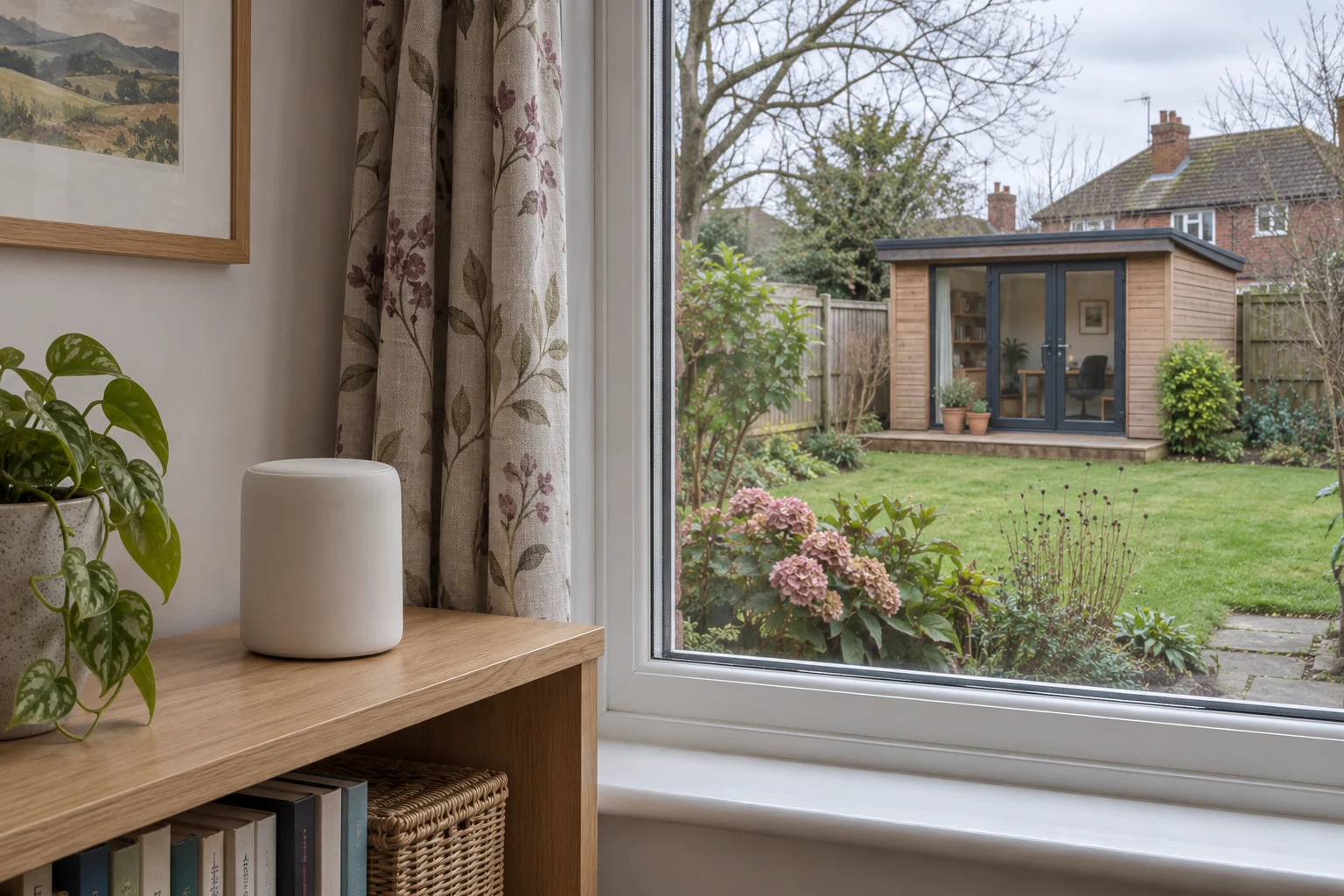
Take the same device from the house router to your office desk and repeat the same call or test. If the call works by the router but breaks up at the desk, check the route between them before buying another router or extender.
Measure where the connection fails
Keep one log for all locations
Start with the router, an intermediate spot and the desk. Record the call and upstream link separately from speed and latency.
Check provider status and note whether every device is affected. Write down when the problem happens, what call or application is interrupted and whether the home network is busy. Test the same device and test method near the house router, at a safe point between buildings and at the desk. Use an existing supported wired test if available. Keep VPN and competing traffic consistent or recorded. A poor house baseline prompts an ISP or device check. A strong baseline with a weaker desk result helps focus on the garden link, which you can then test again. Repeat during actual working hours.
Ofcom’s broadband and Wi-Fi guidance describes device, placement and wired comparison checks.
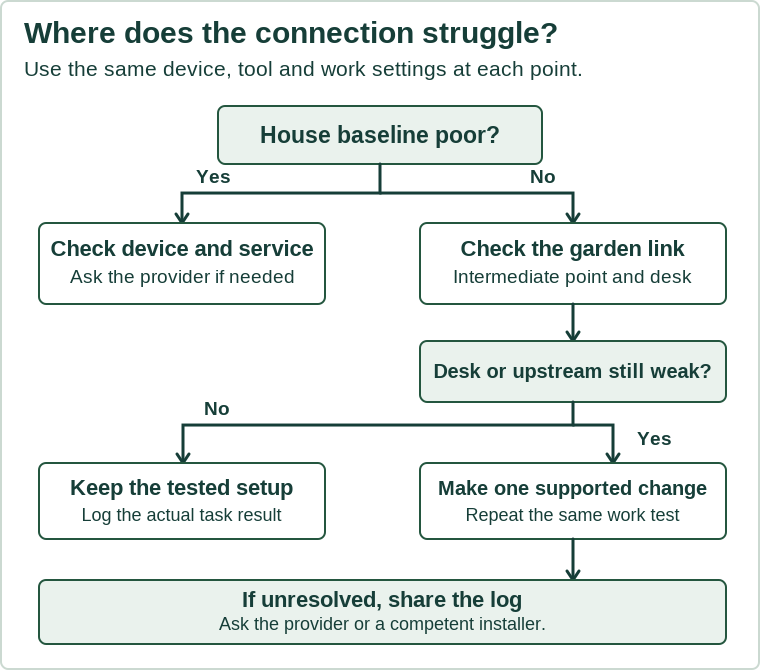
Follow the same branches in words
- House baseline poor. Check the provider status and affected devices. Compare an existing supported wired connection if available. Share the evidence with the provider or device support if the house result stays poor.
- House baseline steady. Compare a safe intermediate point and the occupied desk with the same tool, device and work settings.
- Desk task and upstream link steady. Keep the arrangement and record how it works at your usual work time.
- Desk task or upstream link weak. Make one permitted placement change in a supported location. Repeat the link reading and same call or other work task, then log whether it improved.
- Still unresolved. Give the test log to the provider or a competent network installer. Ask them to check which link needs attention.
What sits between the router and the desk?
Distance, building materials, metal obstacles, doors, windows, equipment position and nearby wireless traffic can change performance. If relevant, compare with the door closed and briefly open when safe. Record the conditions and avoid claiming you have isolated a particular foil or insulation effect. Move permitted indoor devices within their safe and supported locations and change one thing at a time. Keep router access, employer network and account policies in place while gathering measurements.
In published indoor Wi-Fi 6E tests, researchers kept the end nodes fixed and tried several intermediate mesh positions. They logged the median received signal over 30 seconds at each position. Short, clear paths measured −45 to −50 dBm at 6 GHz, and obstructed paths over 10 metres were weaker. The office tests also reported about 5–6 dB loss at 2.4 GHz and 8–12 dB at 5 and 6 GHz for paths affected by walls and metal doors. Distance, obstacles and frequency all varied across the measurements. Use the study to decide what to compare in your room, then measure your own positions.
Google’s wireless interference guidance illustrates how distance, obstacles and nearby equipment can affect a link. Record where you tested and what went wrong. One weak result at the desk can’t tell you which wall or device caused it.
Choose a fix and repeat the test
- Mesh point or extender. Test the upstream link where the device would sit, then the desk. Google’s Nest placement guide illustrates the mesh test and repeat after a supported move.
- Outdoor access point. Ask the installer to check exact equipment, exposure, mount, power and backhaul. TP-Link’s EAP225-Outdoor v1 specification illustrates the kinds of product fields to confirm. Test the installed link.
- Ethernet. Get a suitable protected route, ready endpoints and handover test scoped by the installer. Use this when you need to reduce reliance on the wireless hop.
- Powerline. Trial the exact compatible adapters on safe existing sockets under the product instructions. TP-Link’s FAQ describes differences between circuit paths and possible filtering at boards and outlets. Repeat the actual task under normal use.
- Mobile broadband. If the house receives slow broadband near its router or no practical private link reaches the office, test a separate mobile service at the desk. Try the candidate network during a typical work session and record upload, call stability and coverage with the door in its usual position. Check data limits and the ongoing charge. If the weak point is only the last Wi-Fi hop, compare this separate service with fixing that hop through a properly placed mesh point, an access point or a wired link.
Keep the original and repeat results together. For any unfamiliar installation or unresolved link, ask a competent installer to review the conditions and results.
Related guides
Sources and checks
The decision tree uses provider and manufacturer guidance to help plan repeatable checks. The log is for your device, work settings and site. Use exact equipment instructions and take unresolved results to the appropriate provider.
- Ofcom broadband and Wi-Fi help — Existing service, device, placement and wired comparisons. Checked 21 November 2026.
- Google Nest Wi-Fi placement — Model-specific upstream and mesh testing example. Checked 21 November 2026.
- Google wireless interference guidance — Examples of barriers and possible sources of interference. Checked 21 November 2026.
- TP-Link EAP225-Outdoor v1 — Manufacturer example of environment, power, backhaul and mount requirements. Checked 21 November 2026.
- TP-Link powerline FAQ — Circuit paths, filtering and compatibility to test for the actual setup. Checked 21 November 2026.
- Aalborg University Wi-Fi 6E mesh measurements — Published three-node indoor tests, with varied candidate extender positions, received signal strength measured over 30 seconds and obstruction-loss comparisons by band; not an outdoor or garden-office trial. Checked 21 November 2026.